New feature available from iOS v2.11.0 and Android v2.10.0! Please visit the app store to update to the latest version of the app. You must be Level 10 or higher to create collections. Distribution has been gradually rolled out since August 17, 2021.
My Collections
My Collections lets you organize and display your posts together. The way you use it is up to you—group posts by field notes, taxonomic groups, or specific species of Wildlife.
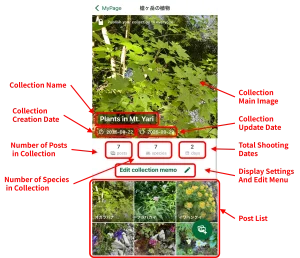
Collection Screen Layout
Creating a Collection
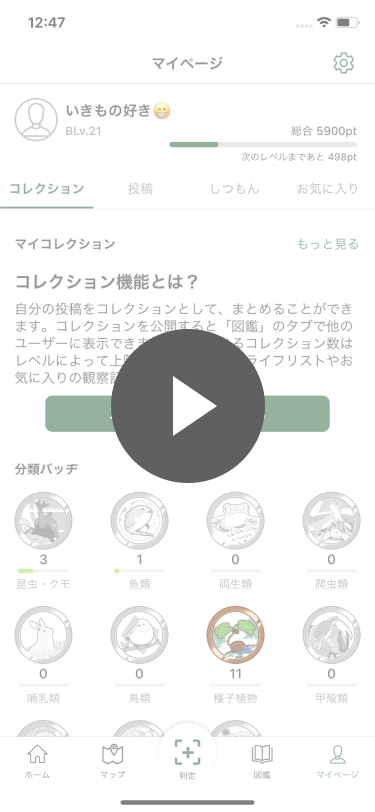
Method 1: If this is your first time creating a collection, you can start a new one from your My Page.
1. Tap the Create button. 2. Enter a Title. 3. Tap New Collection.
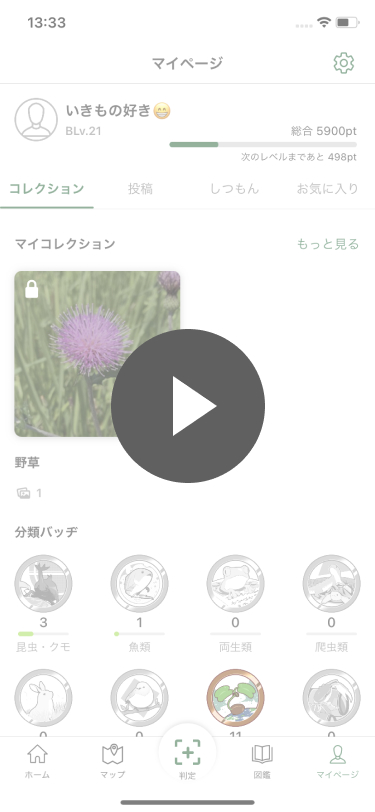
Method 2: Display the Collection list page from My Page and create a new collection using the button in the bottom right corner of the screen.
1. On My Page, tap “See more” next to Collections. 2. Tap the ‘+’ button in the bottom right corner. 3. Enter a Title. 4. Tap New Collection.
Adding Posts to a Collection
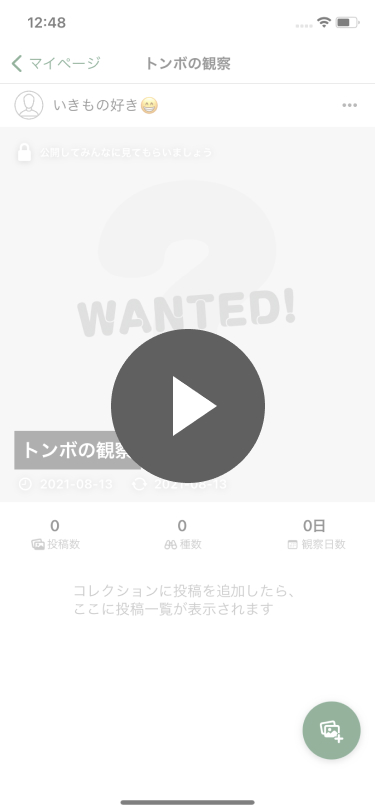
You can add posts using the button in the bottom right corner or the “…” icon in the top right corner of the Collection Detail page.
1. Tap the Add Post button. 2. Tap the posts you want to add to select them. 3. Tap “Add” in the top right corner.
Note: You can add up to 50 posts at a time.
Removing Posts from a Collection (Editing Posts)
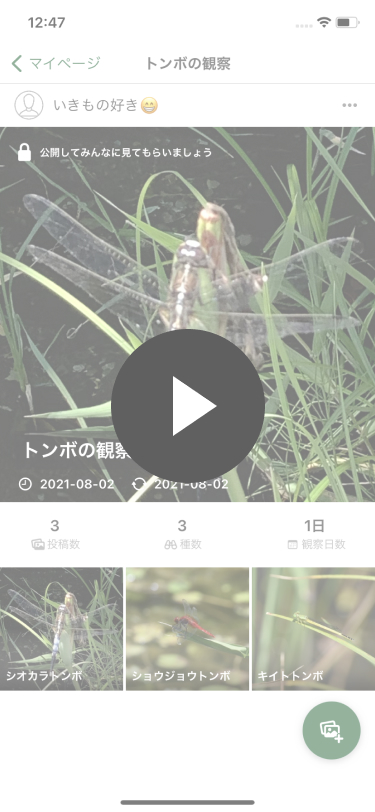
You can edit posts using the “…” icon in the top right corner of the Collection Detail page.
1. Select Edit Collection. 2. Tap the posts you want to remove to select them. 3. Tap the icon in the bottom right corner. 4. Confirm the message and tap “Remove”.
Note: Removing a post from a collection does not delete the post itself.
Collection Settings
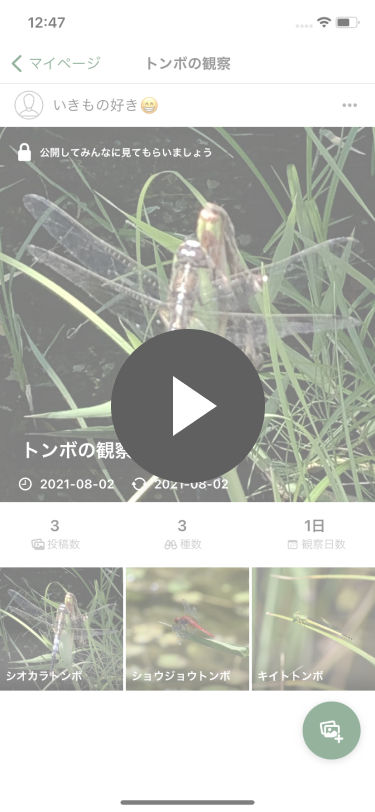
You can change settings using the “…” icon in the top right corner of the Collection Detail page.
1. Select Collection Settings. 2. Edit the Title, Description, Header Image, and Public/Private setting. 3. Tap “Done” in the top right corner.
Note: The header image is set automatically based on your posts, but you can also upload an image to set it.
Making a Collection Public
Collections are private when first created. Once you set a collection to public, it will appear on the Field Guide page, and other users will be able to mark it as a Favorite.
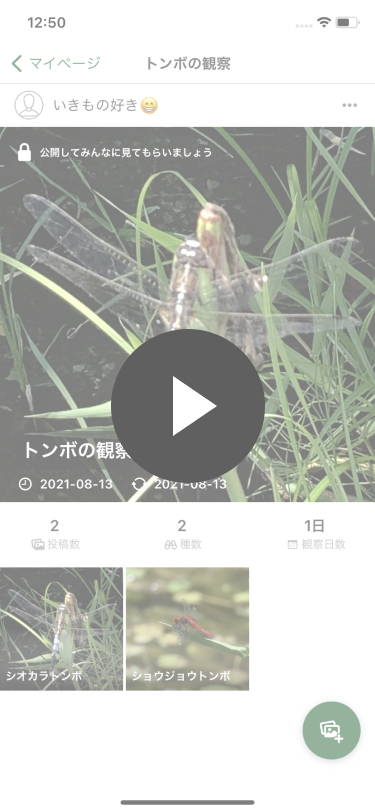
You can make a collection public from the lock icon on the Collection Detail page or via Settings.
1. View the Collection Detail page. 2. Tap the lock icon. 3. Tap “Public”.
Note: When public, other users can favorite (bookmark) the collection. Note: You can set it back to private from the Collection Settings screen. Note: Private posts added to a collection cannot be viewed by other users.
Tips
You must be Level 10 or higher to create collections.
(1) The number of collections you can create depends on your Biome Level.
(2) Private posts within a collection are only visible to you. (3) You cannot see who has favorited your collection. (4) Only Public collections appear on other users’ My Pages. (5) Your Favorites do not appear on your My Page for other users. (6) If you set a collection to Private, other users, even those who have favorited it, will not be able to access it.
Related: Favorites Feature
You can mark public collections from other users as a Favorite (bookmark). Favorites are easily accessible from your My Page.
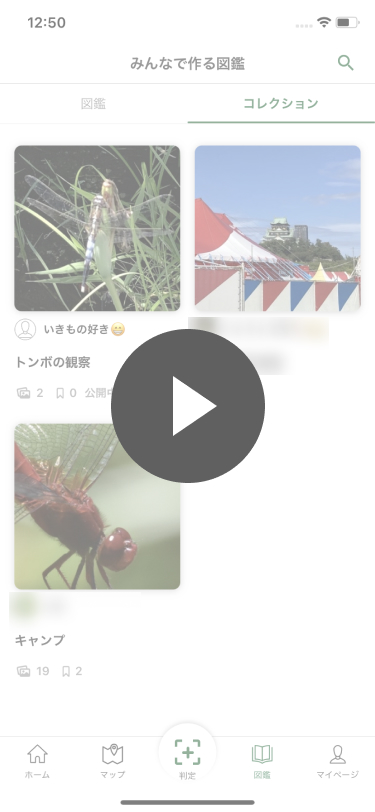
You can favorite a collection from the Collection tab in the Field Guide or from the Collection Detail page displayed on another user’s profile.
1. View the Collection Detail page. 2. Tap the Favorite icon. 3. The icon changes color, and favoriting is complete!
Note: To unfavorite, tap the Favorite icon on the Collection Detail page again.