From Taking Photos to Posting
Photos taken with the camera on your iPhone or Android can also be posted if they contain location data, but we introduce the most reliable method: taking and posting photos using the camera within the Biome app.
① Launch the Camera
On the Home screen, tap the “Identify” button in the center of the bottom bar to launch the camera and photograph the “Wildlife”.
・Center the entire “Wildlife” in the camera view.
・Try to photograph only the subject “Wildlife”.
・The accuracy of the identification may vary based on the posture or appearance of the “Wildlife” in the photo. If the accuracy is poor, you may want to try using a different photo.
・For plants, identification may sometimes be possible by focusing not just on the whole “Wildlife”, but also on prominent parts like leaves, flowers, or buds.
② Crop the Photo
Crop the photo into a square (adjust the size by dragging the corners, and the position by dragging the center), then tap the “Done” button in the upper right corner of the screen.
③ Identify the Species Name!
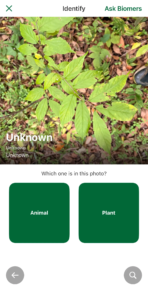
Select either “Animals” or “Plants” and press “Start Identification”. AI identification will be performed, and several candidates will be suggested. You can also choose the “Wildlife” by directly searching from “Or Enter Yourself” at the bottom of the screen.
④ Decide on the Species Name!
There are several scenarios, but typically you select the “Wildlife” image and tap “Confirm this Species”.
If you find a “Wildlife” that seems correct, select the image and tap “Confirm this Species”.
If the “Wildlife” candidates suggested by the AI differ from what you thought the “Wildlife” in front of you was, tap “Enter Species Yourself” in the bottom left corner of the screen. You can search by Japanese name (Hiragana supported) or Scientific name.
If you are unsure, tap “Need Your Help” in the bottom right corner of the screen, specify an Observation Memo (Comment) and Classification Group, and tap “Post” to submit a question post.
⑤ Post and Get It!
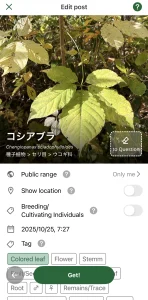
Set whether to display the location, add an Observation Memo (Comment), set the Post Visibility (“Public” or “Private”), and tap “Post” to complete the submission.
The content of the Observation Memo (Comment) is flexible, but commenting on features of the “Wildlife” that aren’t obvious in the photo will help other users provide more accurate suggestions.
View Other Users’ Posts
Scroll the Home screen to find the “New Posts” section. “Wildlife” images are displayed in descending order of posting date. Select the image you want to see for details. You can “Like” the post or write a comment. Tap the icon to the left of the “Like” button to provide a species suggestion.
Answer Other Users’ Questions (Suggest a Name)
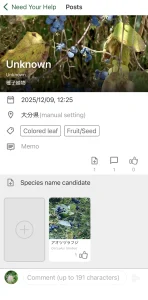
Scroll the Home screen to the very top to find the “New Questions” section. “Wildlife” images that have not yet had their suggested name confirmed are displayed in descending order of posting date. Select the image you want to see for details. Tap “Suggest Species Name” below the image to search for a name using “Enter Suggested Species Name”. Once you find the correct name, tap the image and press “Confirm this Species” to complete the suggestion.
View the “Wildlife” Map
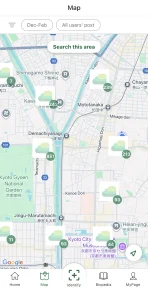
Tap “Map” at the bottom of the Home screen to see “Wildlife” posted by users across the country displayed on the map. You can find out what “Wildlife” are in your surrounding area. We encourage users to cooperate and enrich the “Wildlife” map!
Biopedia
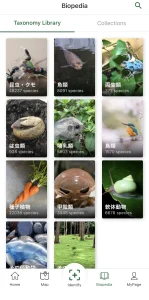
Tap “Biopedia” at the bottom of the Home screen to view photos of “Wildlife” posted by users nationwide, just like a field guide. The display format is based on taxonomic rank; selecting a classification displays even finer classifications.